Exam Feedbacks
Exams feedbacks are enabled after the presentation of the exam questions, often during defined time periods but latest until the discussions begin. After this period, the feedback submission for the specific question will be closed.
Submitted feedbacks will be viewed by the organizers and are visible to all delegations.
Get Started
Add Feedback
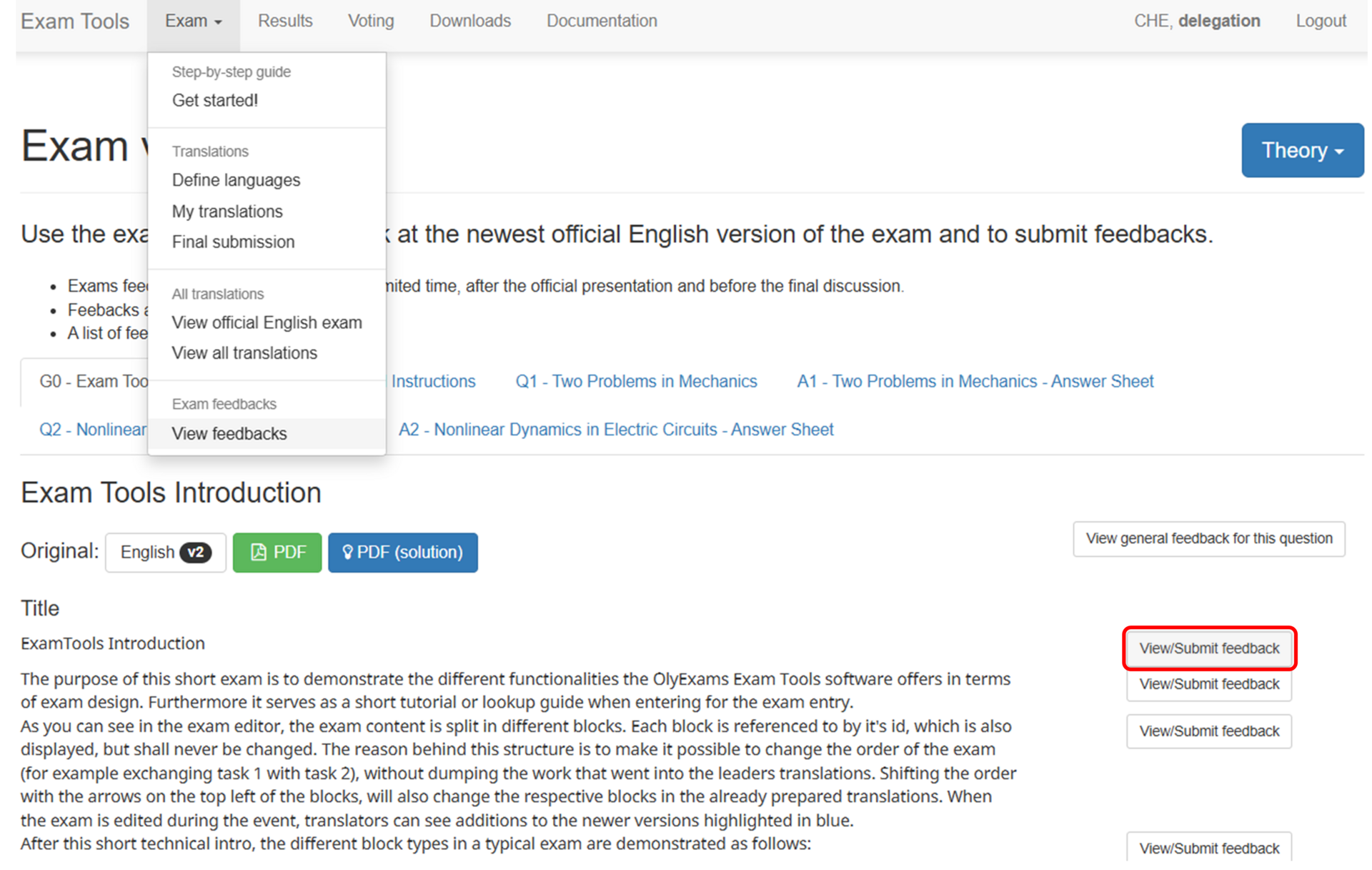
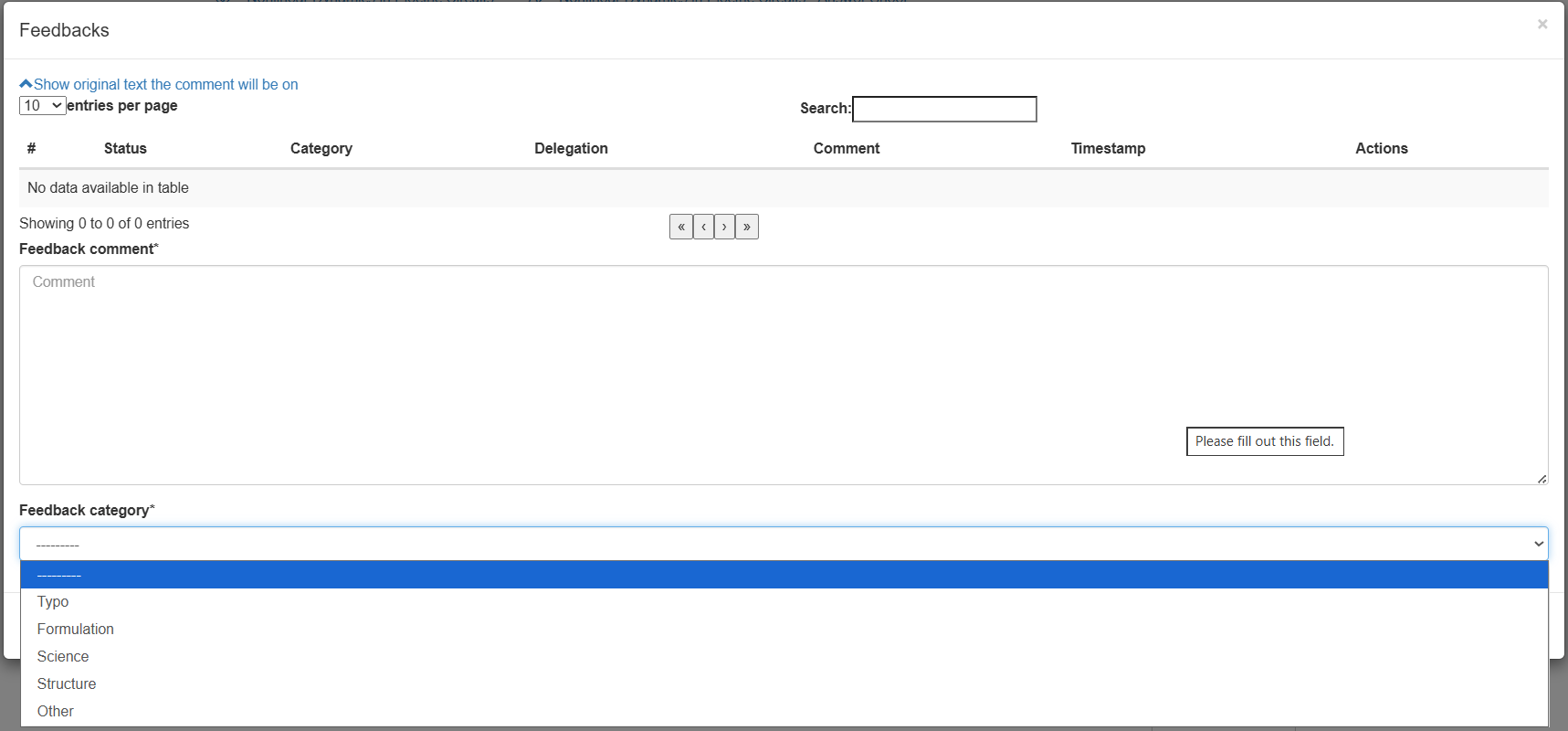
You can submit a feedback on any specific part of the question including the subparts by clicking the View/Submit feedback button. In the opened popup window, you can enter your feedback, and choose the feedback category (Typo, Formulation, Science, Structure, Other). Make sure to submit constructive feedback with a concrete proposition. For example if you think a certain part of a question needs clarification, write down a sentence as you would include it in the final exam. Finally click the Send feedback button and a green confirmation banner will tell you that your feedback has been added.
In case the Send feedback button is red and says Feedback entry no longer possible, the feedback entry period for that specific question has ended and you will not be able to submit feedback anymore. If you think this is incorrect, contact the organizers.
You can withdraw your feedback after sending for any reason using the Withdraw button. It will appear as withdrawn in the feedback status.
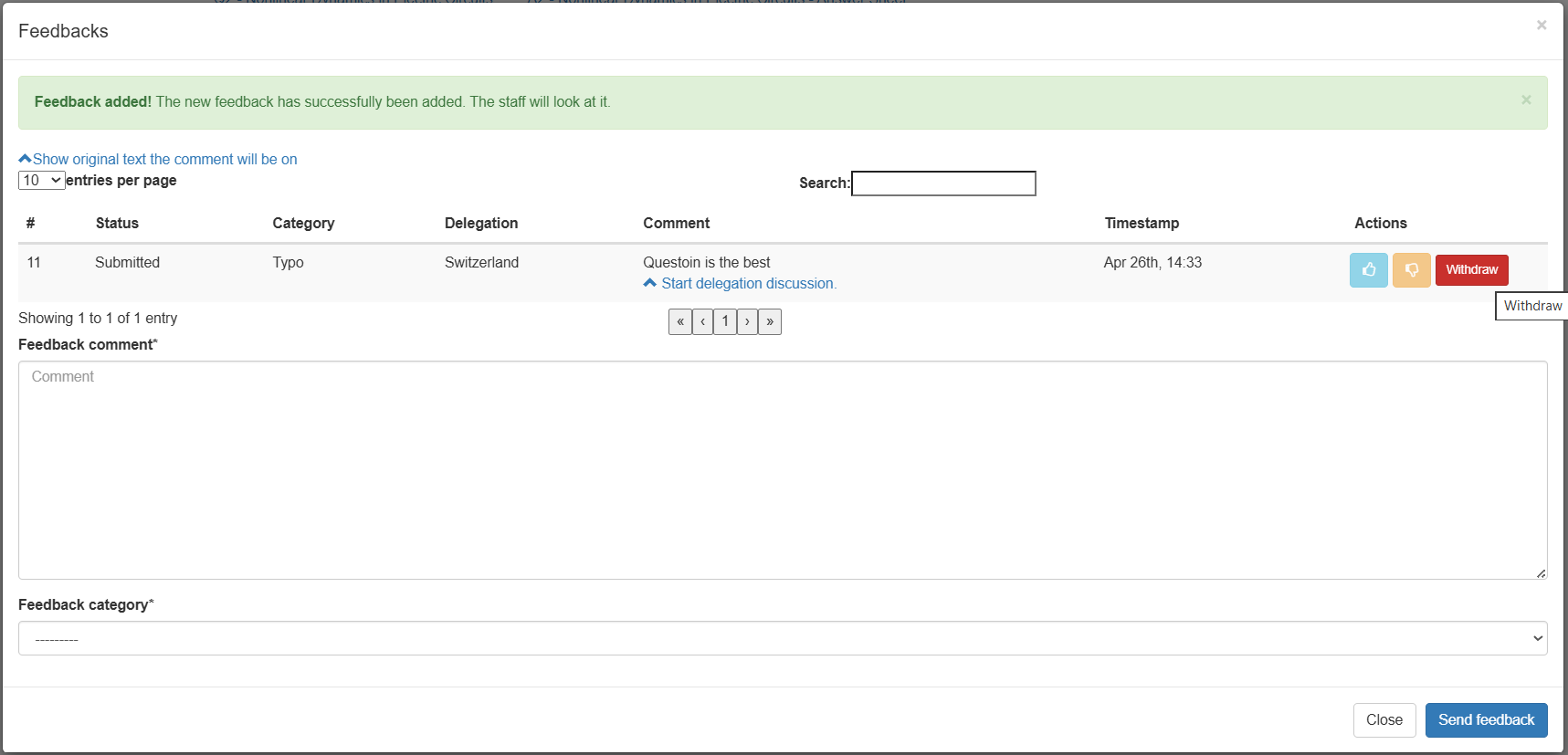
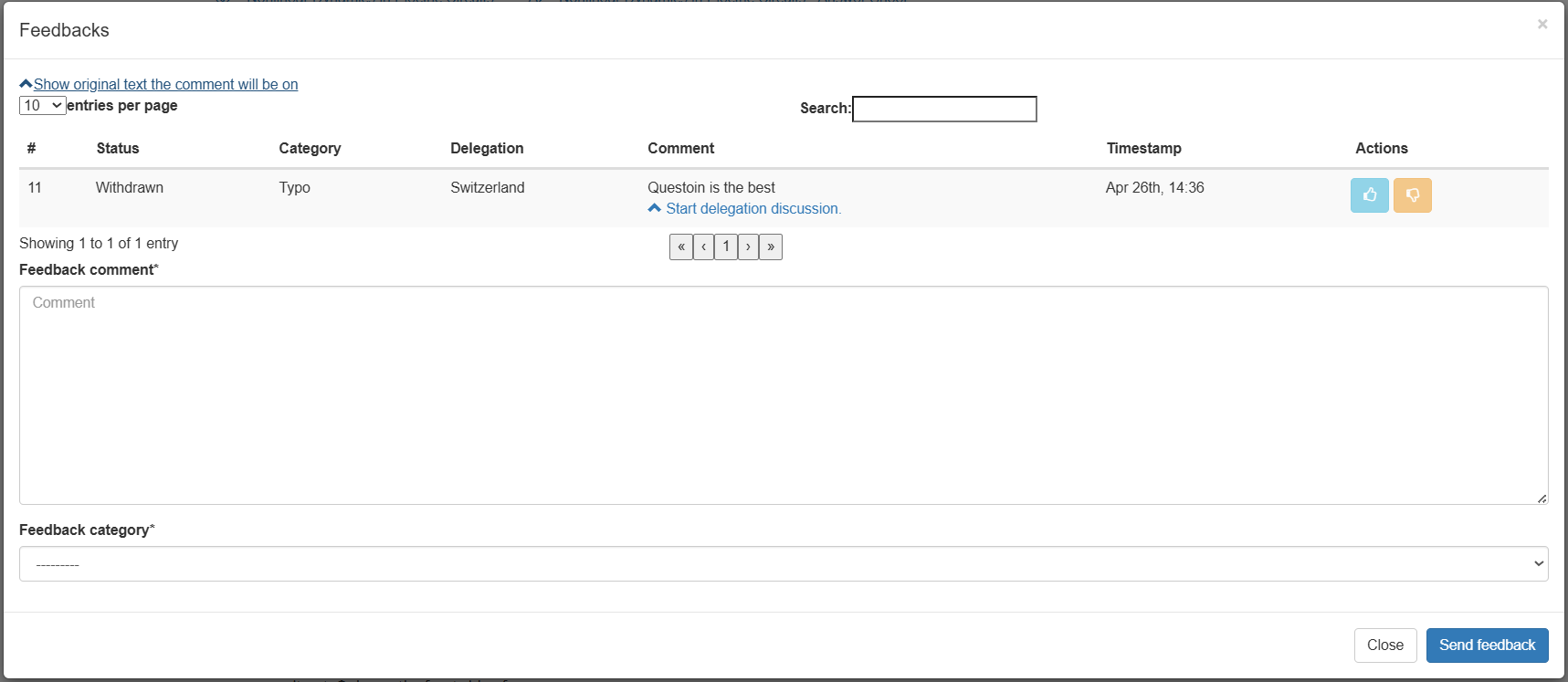
If someone else has liked your feedback or it has been marked as implemented by the organizers, you are no longer able to withdraw it.
Review Feedbacks
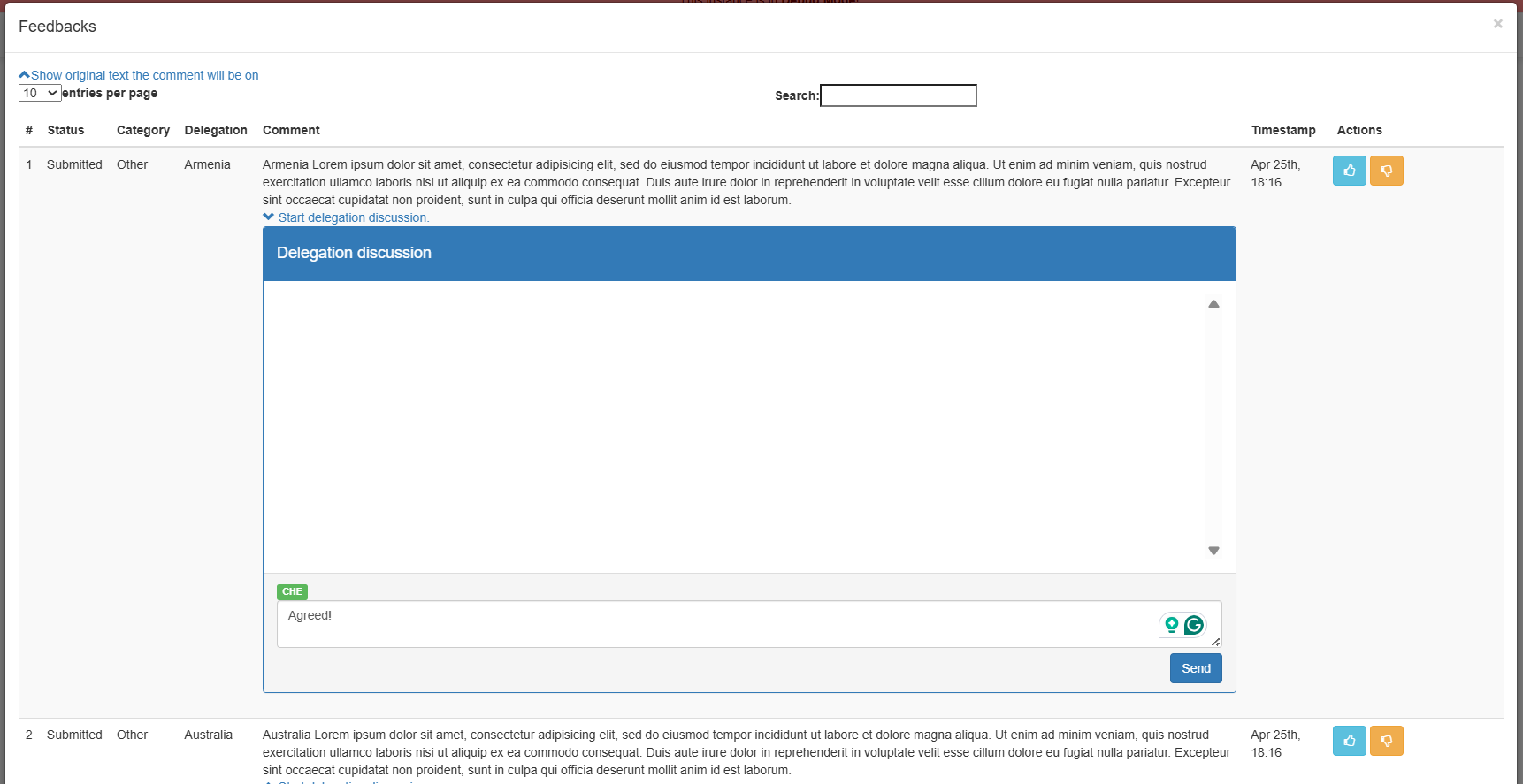
All Feedbacks for the currently discussed exam are visible to everyone. While the leaders prepare feedbacks, the authors can already react to them. Each feedback can have one of four states which are controlled by the organizers:
- Submitted: The feedback has successfully been submitted to the server and is now visible to everyone.
- Scheduled for discussion: This feedback will be discussed between the organizers and the board.
- Implemented: The changes suggested in this feedback have been included in the exam, either after a voting or after having been accepted by the authors.
- Settled after discussion: The creator and the authors have come to an agreement after discussion.
- Withdrawn: The author of the feedback has withdrawn their comment. This must be set by the delegation themselves, not by the organizers.
Additionally, you can like or dislike a feedback. Simply click either of the thumbs up or thumbs down buttons in the Actions column. If, for example, you see a feedback which makes the same point as you were about to make, you can give this feedback a like instead of submitting your own. This will help the authors decide quickly which feedbacks are important to the most people. You can also comment on the feedbacks by clicking the Start delegation discussion button.